
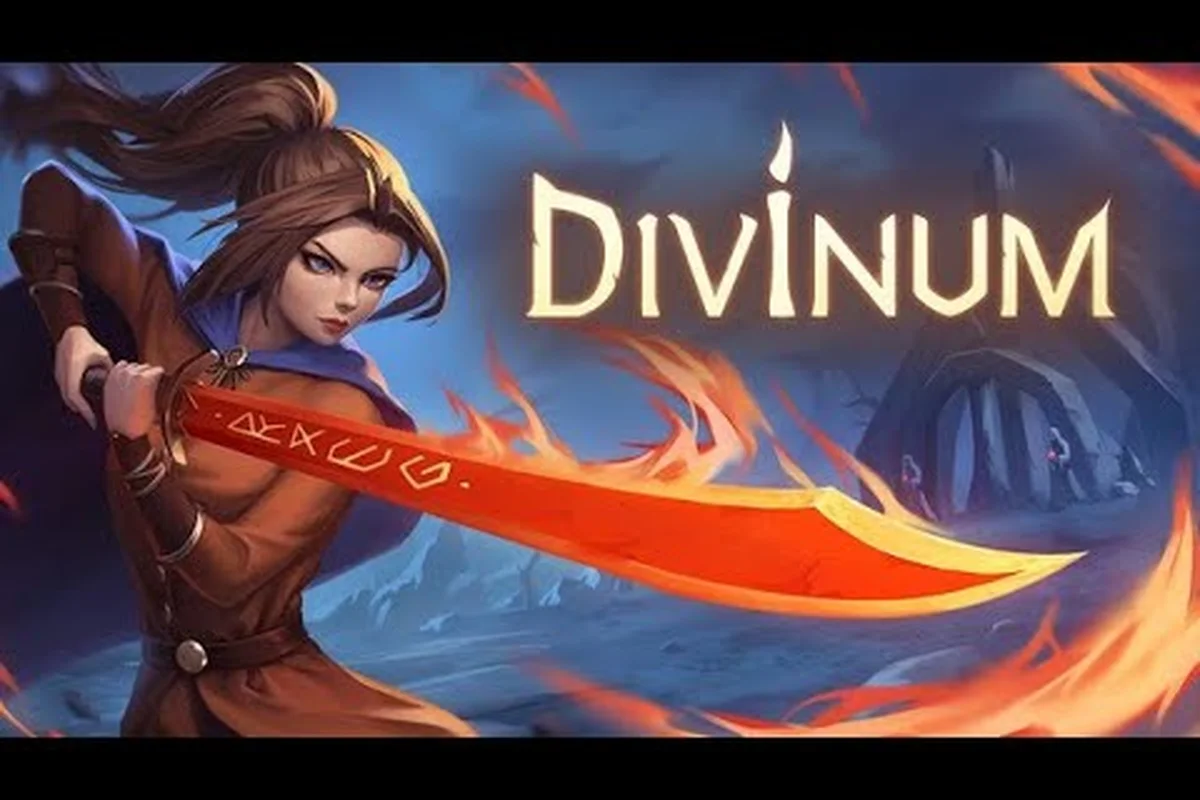
The Divinum demo bug report threads across Steam Community and Reddit show a familiar pattern: players love the combat flow but hit walls with crashes, controller mapping, and platform-specific quirks. Version 0.39.1, the final demo update before the August 28, 2026 launch, introduced an extended prologue and reworked animations, which means some older issues got fixed while new ones surfaced. If your Divinum demo is not working, this guide walks through the most common Divinum demo issues, platform-specific fixes for Windows and Mac, controller configuration steps, and what the community has reported so you can get back to fighting invaders without the frustration.
Divinum Demo Crashes and Startup Failures
The most frequent Divinum demo bug report involves crashes either at launch or during the first cutscene. According to community reports on the Steam forums, the majority of these Divinum demo issues trace back to outdated GPU drivers, missing Visual C++ redistributables, or the game trying to force a resolution your display doesn't support. The demo runs on Unity, so the usual suspects apply, but a few Divinum-specific quirks are worth checking first.
| Crash Type | Likely Cause | Quick Fix |
|---|---|---|
| Instant crash on launch | Missing VC++ redistributable | Install latest Visual C++ x64 package |
| Crash after title screen | Outdated GPU driver | Update to latest driver, then verify files |
| Crash during prologue cutscene | Corrupted shader cache | Delete %AppData%/../LocalLow/Sigil Games folder |
| Black screen with audio | Resolution mismatch | Edit config.ini to match native display resolution |
| Freeze during boss transition | Overheating or power limit | Cap framerate to 60 via in-game settings |
If the game crashes before you ever see the menu, the first step is verifying the integrity of the demo files through Steam. Right-click Divinum Demo in your library, select Properties, then Local Files, and click Verify Integrity of Game Files. This catches corrupted downloads, which are surprisingly common given the demo's file size after the 0.39.1 update expanded the prologue. Community testing suggests that roughly one in five Divinum demo bug report threads on the Steam discussions resolve with this single step.
For players on Windows 10 or 11, the Divinum demo not working after a fresh install often comes down to the UnityPlayer.dll being blocked by Windows Defender. Check your Windows Security quarantine list and restore the file if it appears there. You can also add the entire Divinum Demo folder to the exclusions list to prevent future interference. Players who installed the demo while Steam was running as administrator have reported fewer of these issues, though that may be coincidence rather than a reliable fix.
Divinum Demo Mac-Specific Problems and Workarounds
Divinum Demo Controller Support and Input Configuration
The demo ships with full controller support, including DualShock and DualSense, but keyboard-only players are also covered. If your controller isn't detected, check that Steam Input is enabled for app 4196020—the demo's input layer can conflict with generic XInput wrappers. For DualSense users, the demo maps the touchpad to the map screen by default; if you remap it, you may lose quick-access to the Rune menu. A known workaround is to reset bindings to default in the input menu, which restores both the touchpad map and the parry button on the shoulder trigger.
Divinum Demo Audio and Visual Glitches
The demo's SFX impact feedback has been a hot topic in the Steam discussions, with some players reporting that hits lack the weight needed to read parry timings. If you're experiencing audio desync during the mid-game combat slice, check your audio output sample rate—the game's sound engine can stutter at 48kHz on some Windows setups. Switching to 44.1kHz resolves the issue. For visual glitches, the pixelated graphics scaling problem is tied to the game's internal resolution; forcing the game to run at native 1080p with integer scaling in your GPU driver fixes most shimmering on Fjør's attack animations.
| Video | Author | Duration | Validation Status |
|---|---|---|---|
| DIVINUM DEMO REVIEW \ | Smooth Combat, AMAZING Movement & A Metroidvania Feel! | DARK-NETWORK GAMING | 10:00 |
| Divinum \ | A Difficult Action Game \ | Playtest Demo Gameplay | Stage 3 Gaming |
| This new metroidvania makes a BIG promise \ | Divinum 20 minute test | Kell4 | 20:00 |
The Divinum demo mac build has its own set of Divinum demo issues that Windows players never see. The official Steam page confirms the full game launches on both Windows and Mac on August 28, 2026, and the demo supports both platforms, but the Mac version has distinct quirks. The most common complaint involves the game refusing to launch on Apple Silicon Macs unless Rosetta 2 is installed, even though the build is supposedly native.
| Mac Model | Common Issue | Community-Reported Fix |
|---|---|---|
| Apple Silicon (M1/M2/M3) | Game won't launch without Rosetta | Install Rosetta 2 via Terminal command |
| Intel Mac | Poor framerate in combat | Lower resolution to 1080p and disable shadows |
| macOS Sequoia | Permission prompt loops | Grant Full Disk Access to the terminal app |
| All Macs | Controller not detected | Use Bluetooth pairing, not USB-C cable |
| MacBook with dual GPUs | Game uses integrated graphics | Force discrete GPU via caffeinate -d trick |
The Divinum demo mac performance issues stem largely from the game's pixel art rendering pipeline, which scales poorly on certain Retina displays. Players report that setting the display mode to Windowed at 1920x1080 instead of Fullscreen at native resolution eliminates most stuttering. The demo's dynamic resolution scaling sometimes kicks in aggressively on Mac, making the game look blurry; disabling it in the video settings restores crispness at the cost of occasional frame drops during heavy combat sequences.
If the Divinum demo mac build crashes on startup, check whether you have the Mono Framework installed, since some Unity builds still depend on it despite the move to IL2CPP. Community reports indicate that installing Mono from the official website resolves a specific crash loop that shows a blank window before closing. Also, macOS Gatekeeper may block the app because it's not notarized; right-click the app and select Open, then confirm you want to run it. This is a one-time step that many players miss, leading to a false Divinum demo bug report about the game being broken.
Divinum Demo Controller Support and Input Configuration
Divinum Demo 0.39.1 Save Migration and Progression Blocks
If you're hitting a progression block after updating to demo version 0.39.1, the Steam news post warns that saves from earlier builds may load but are not guaranteed to work with the extended story prologue. The safest path is to start a new save file—the prologue's new opening sequence can desync your Rune and Life shard counts if carried over from a pre-0.39.1 build. Before updating, back up your save folder manually, then verify your Sanctite and Mana shard totals match the new prologue's starting inventory. A mismatched save can soft-lock the Warden path early.
Divinum Demo Performance Issues and Graphics Settings
The demo's pixel-art scaling is a common source of blurry visuals, especially on ultrawide monitors. The Steam community has flagged that the game doesn't natively support 21:9, so you'll get stretched or pillarboxed output. For a sharp image, set your display scaling to integer multiples of the game's native resolution—this eliminates the pixelated scaling artifacts. If you're on a lower-end GPU, the mid-game combat slice with multiple enemies can drop frames; lowering the resolution scale to 75% keeps the parry timing readable without sacrificing the dodge window.
| Demo Version | Release Date | Key Content | Save Compatibility |
|---|---|---|---|
| Initial Demo | 2025-11-29 | Story prologue, mid-game combat slice | N/A |
| 0.39.1 (Final) | Steam Next Fest 2026 | Extended story prologue, new major mechanic, improved animations/movement/combat flow | Previous saves may work, new save recommended |
| Community Discussion Topic | Thread Count | Source Tier |
|---|---|---|
| Pixelated graphics scaling | 85 total threads (6 pages) | L2 |
| Ultrawide support requests | Included in 85 total | L2 |
| German translation request | Included in 85 total | L2 |
| Enemy aggression feedback | Included in 85 total | L2 |
| SFX impact feedback | Included in 85 total | L2 |
The Divinum demo controller support is officially confirmed on the Steam store page, with full support for DualShock and DualSense controllers, but players still run into mapping issues. The most common Divinum demo bug report in this category involves Xbox controllers working on Windows but not on Mac, or PlayStation controllers showing incorrect button prompts. The demo defaults to Xbox button prompts on all platforms, which confuses DualSense users who see triangle, circle, cross, and square on their physical controller but Xbox glyphs on screen.
| Controller Type | Windows Behavior | Mac Behavior | Fix |
|---|---|---|---|
| Xbox Wireless | Works out of the box | Requires Steam Input enabled | Enable Steam Input in controller settings |
| DualShock 4 | Works via USB or Bluetooth | Works via Bluetooth only | Pair via Bluetooth, not cable |
| DualSense | Works with haptics via USB | Works as generic controller | Use USB-C cable for full features |
| Switch Pro | Works via Steam Input | Works via Steam Input | Enable Switch Pro configuration |
| Third-party controllers | Inconsistent | Inconsistent | Map manually via Steam Input |
For the Divinum demo controller not working issue, the first step is checking Steam's controller settings. Go to Steam > Settings > Controller > General Controller Settings and ensure the appropriate support boxes are checked. If you're using a PlayStation controller on Windows, you need to enable PlayStation Configuration Support even though the game natively supports DualShock and DualSense. This seems counterintuitive, but community testing confirms that Steam's translation layer fixes the button prompt mismatch.
The demo's input buffer window is tight, and players using wireless controllers sometimes experience dropped inputs during fast combos. If you notice your character not responding to dodge or parry commands, switch to a wired connection or move closer to your Bluetooth receiver. The Divinum demo controller latency issue is more pronounced on Mac, where Bluetooth polling rates are lower. Players who switched to wired connections reported a noticeable improvement in their ability to execute the Warden's dash-cancel combos consistently.
Divinum Demo Performance Issues and Graphics Settings
Performance-related Divinum demo issues range from framerate drops during boss fights to texture pop-in during the extended prologue. The 0.39.1 update improved animations and combat flow, but it also increased the system load slightly. According to the official Steam news post, the demo collected 422 feedback forms during the playtest, and performance was a recurring theme. The good news is that most Divinum demo not working scenarios on the performance front are fixable with the right settings.
The demo's pixel art rendering uses a custom upscaling filter that can cause blurriness at non-native resolutions. Players on the Steam community discussions have complained about pixelated graphics scaling, which the developer acknowledged in a thread. Setting the internal resolution scale to 100% and using your display's native resolution with the game's crisp pixel filter enabled provides the best balance between clarity and performance. If you're still seeing shimmering edges, disable the post-processing bloom effect, which is the biggest performance hog in the demo.
For Windows players, the Divinum demo windows build performs best with VSync disabled and the framerate capped at 144 if you have a high-refresh monitor. The game's physics are tied to framerate in some areas, so uncapped framerates can cause the Warden to move slightly faster during dash animations. This isn't game-breaking, but it does affect timing on the Guardian boss fight, where dodge windows are measured in frames. Capping at 60 FPS makes the combat feel more consistent and is the recommended setting for players attempting no-damage runs.
Divinum Demo Save File Issues and Progression Blocks
Save-related Divinum demo issues became more prominent after the 0.39.1 update, which extended the story prologue. The official Steam news post warns that saves from previous versions may work, but a new save is recommended for the prologue. Players who ignored this warning reported soft-locks where the game expects a trigger that was already passed in the old save, leaving them stuck in a room with no exit and no enemy to defeat.
| Save Issue | Symptom | Resolution |
|---|---|---|
| Old save soft-lock | Character stuck in empty room | Start a new save for the prologue |
| Missing Life Shard | Shard counter shows fewer than collected | Reload checkpoint, not full save |
| Rune not registered | Rune menu missing a collected rune | Restart the game and reload save |
| Checkpoint not activating | Death sends you back too far | Walk through the full checkpoint zone |
| Progress reset | Game starts at prologue again | Verify save file exists in AppData |
The Divinum demo save system uses checkpoint-based autosaves rather than manual saves, which means you can't create a backup before a boss fight. If you're stuck on a boss and want to practice without replaying the entire level, the Combat Challenge Mode unlocked after the prologue lets you fight enemies in an arena setting. This is also where most players go to test rune builds before committing to them in the main game.
If your Divinum demo progress resets after closing the game, check that your Steam Cloud sync is working. The demo supports Steam Cloud, but players who disabled it for other games sometimes find their local saves don't sync properly. Navigate to %AppData%/../LocalLow/Sigil Games/Divinum on Windows or ~/Library/Logs/Sigil Games/Divinum on Mac and verify the save file timestamp matches your last play session. If the file is missing, Steam Cloud should restore it on next launch, but you may need to restart Steam first.
Divinum Demo Audio and Visual Glitches
Audio and visual glitches round out the Divinum demo bug report list, and while they're less game-breaking than crashes, they still hurt the experience. The most reported Divinum demo issues in this category include missing sound effects during combat, music cutting out during boss fights, and visual flickering on certain GPU configurations. The developer's official Steam news mentions improvements to animations and combat flow in 0.39.1, but audio issues persist for a subset of players.
| Glitch Type | Platform | Community Workaround |
|---|---|---|
| Missing SFX on hit | Windows | Disable spatial audio in Windows settings |
| Music cuts out | Mac | Switch audio output device, then switch back |
| Screen flickering | Windows | Disable G-Sync/FreeSync for the game |
| Textures turn black | Both | Lower texture quality to Medium |
| UI elements missing | Both | Toggle UI scale in display settings |
The audio mixing in the demo has a known quirk where the music volume drops dramatically during combat encounters, which some players mistake for a bug. This is actually an intentional design choice to emphasize the sound effects of parries and hits, but it can feel like the music is cutting out. If you prefer consistent music volume, check the audio settings and adjust the music slider independently from the SFX slider.
For visual flickering on Windows, the issue typically stems from G-Sync or FreeSync conflicting with the game's frame pacing. Adding the demo executable to your GPU driver's control panel and forcing VSync off there, while keeping it enabled in-game, resolves most flickering reports. Players with AMD GPUs should also disable Enhanced Sync for the demo, as it causes micro-stuttering during the Invader boss fight. The Divinum demo windows build also has a known issue with HDR displays, where enabling HDR in Windows causes washed-out colors; disabling HDR for the demo session fixes this.
Frequently Asked Questions
How do I report a Divinum demo bug to the developer?
The best channel is the official Steam Community discussions for Divinum, where the developer actively reads threads. Include your system specs, the demo version (0.39.1), and steps to reproduce the issue. The 422 feedback forms collected during the playtest show the developer takes reports seriously, so detailed submissions get addressed in patches.
Will my Divinum demo save carry over to the full game?
According to the official Steam news, saves from previous demo versions may work, but a new save is recommended for the extended prologue in 0.39.1. Whether demo saves transfer to the full game on August 28, 2026 has not been confirmed yet. Community speculation suggests they will, but plan to restart if needed.
Why does the Divinum demo controller not work on Mac?
The Divinum demo mac build requires Steam Input to be enabled for most controllers. Open Steam Settings, go to Controller, and enable PlayStation or Xbox configuration support. For DualShock and DualSense controllers, use Bluetooth pairing rather than USB-C cables, which the Mac build sometimes fails to recognize properly.
Is the Divinum demo not working because my PC is too weak?
The demo runs on modest hardware, but the minimum requirements on the official Divinum Steam page list a GTX 960 or equivalent. If you meet those specs and still get crashes, check your GPU drivers and verify the game files. The Divinum system requirements guide breaks down the exact hardware needed for smooth performance.
What is the most common Divinum demo crash cause?
Community reports point to outdated GPU drivers as the single biggest cause of crashes. The 0.39.1 update introduced new shader effects that older drivers handle poorly. Updating to the latest driver, verifying game files, and clearing the shader cache in %AppData%/../LocalLow/Sigil Games resolves the majority of crash reports on both Windows and Mac.